

Introduction to Context Graphs
Kombai’s Context Graphs offer a purpose-built, domain-specific alternative to the vector-based indexing prevalent in the general-purpose coding agents. General-purpose agents typically use embedding models to generate embeddings for code snippets, and leverage vector databases to search for nearest embedding-based matches. While this is effective for finding mechanical similarity between text strings, it often misses the crucial, domain-specific context needed for frontend development - such as how a component actually looks and what it functionally does. Furthermore, it is practically impossible to add external dependencies (like custom npm component libraries) to these standard indices. As a result, these agents often struggle to find the appropriate code to reuse, particularly in mature, high-complexity repositories. They often hallucinate important aspects of the reusable code items (e.g. props of a component) or just skip reusing existing code, leading to unacceptably low code quality. Kombai adopts a more human-like method to understand the reusable parts of a repository. Given a source, Kombai first identifies the relevant reusable code items. Then, it builds a use-case-specific understanding of how they work, which it stores as a Context Graph. For example, for reusable components, the Context Graph includes their primary purpose, appearance, behaviors, props and dependencies. This approach results in better reuse of existing code, higher code quality and greater accuracy in complex tasks.Creating Context Graphs
You can create Context Graphs by indexing either the source code or Storybook from current workspace and NPM packages.Index Reusable Source Code
From Current Workspace
From Current Workspace
You can index subfolders of your current workspace that contain supported reusables, to create their Context Graphs.Here’s how to index source code from a subfolder: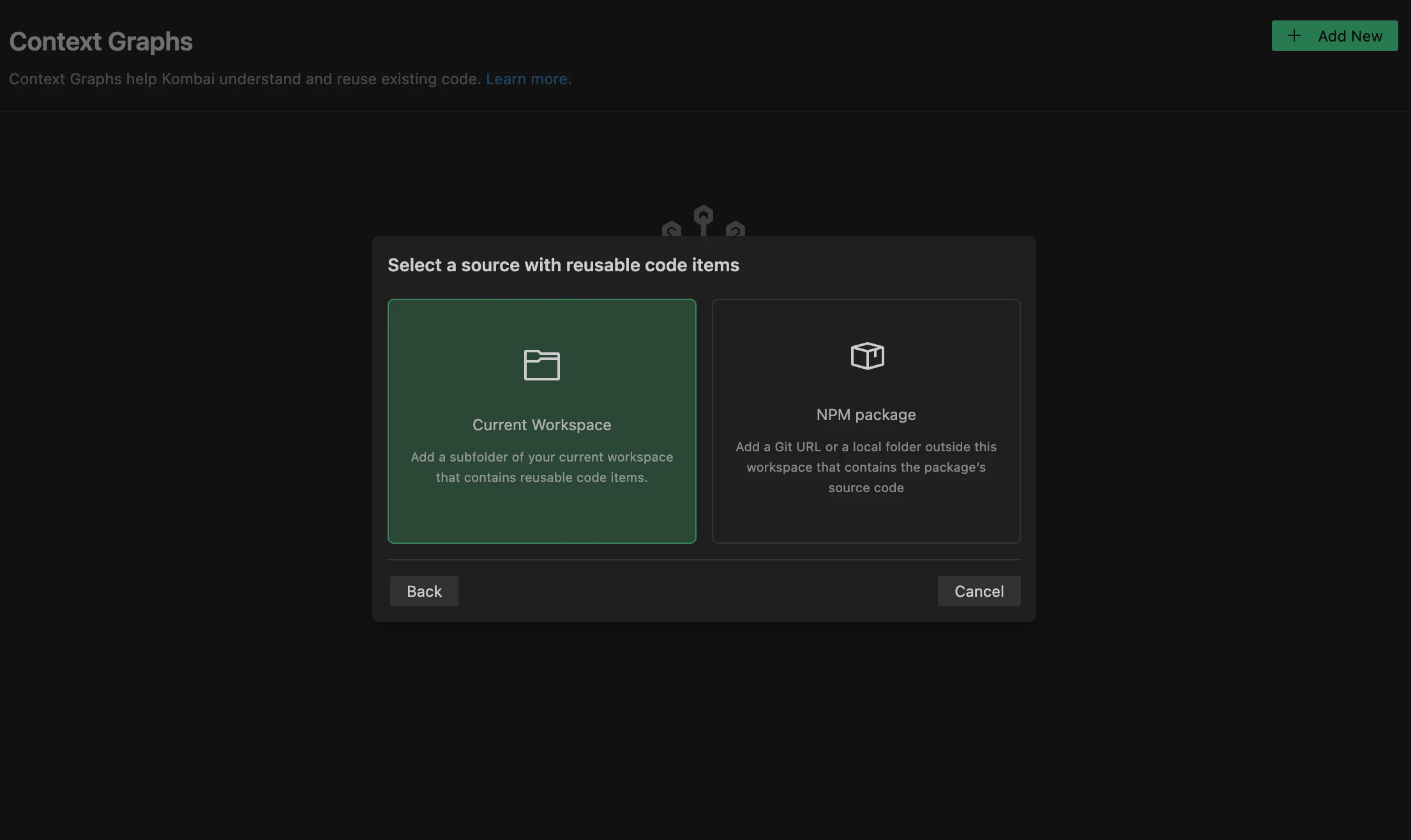
- Click the icon in the top bar to open the Settings page.
- Select the Context Graphs tab from the left menu.
- Click the Add your first context graph / + Add New button.
- Click Reusable source code -> Current Workspace in the modal.
- Browse and select a subfolder from your workspace to index and continue.
- Click Build Context Graph.
From NPM Packages
From NPM Packages
To build a Context Graph for a NPM package, index one of the following: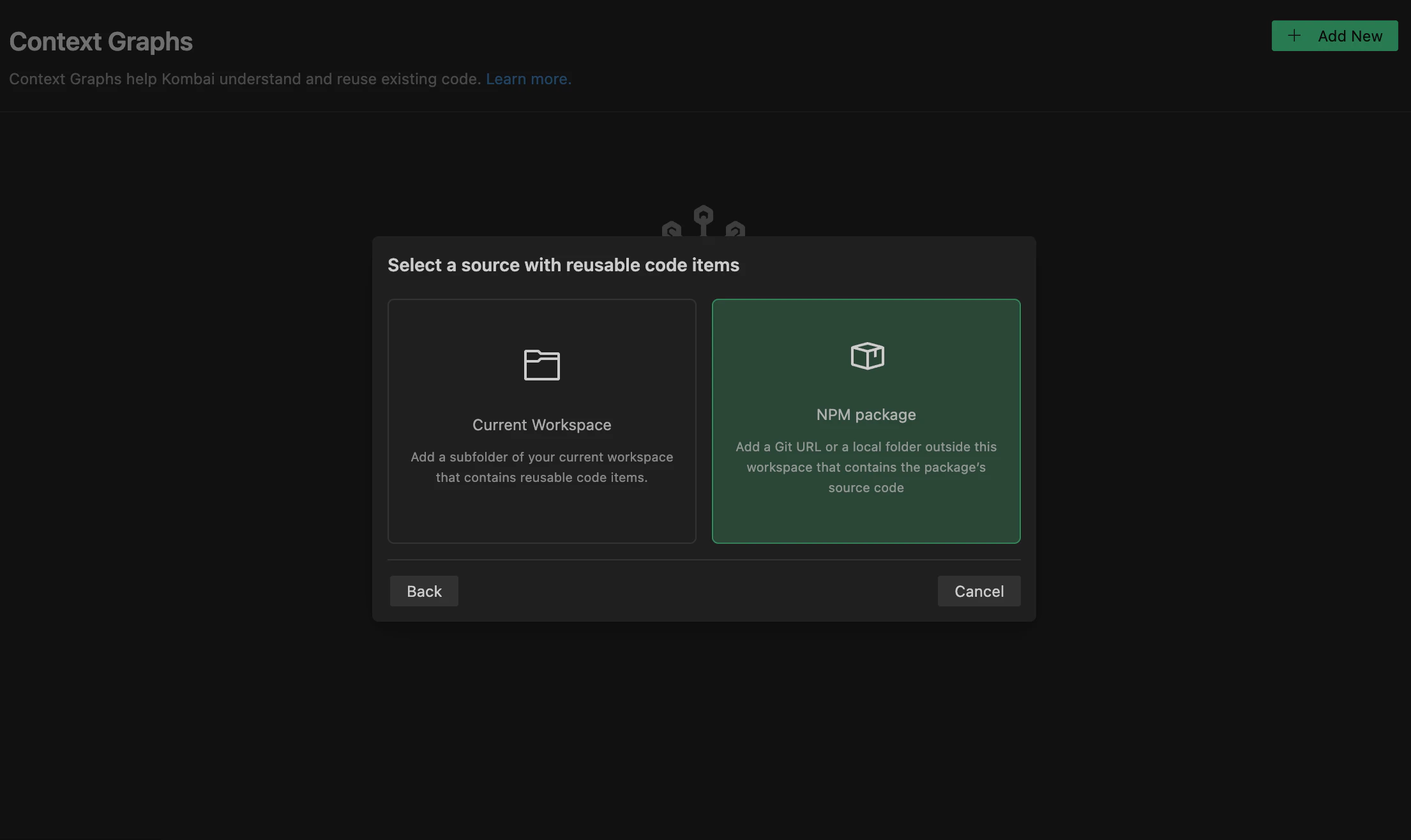
- A local folder outside of this workspace that contains the source code of the package
- A URL of the git repository that contains the source code of the package
- In this case, the git credentials present in your current workspace must have cloning permissions of the git repository.
- Click the icon in the top bar to open the Settings page.
- Select the Context Graphs tab from the left menu.
- Click the Add your first context graph / + Add New button.
- Click Reusable source code -> NPM package in the modal.
- Add your Git repository URL and the Branch and continue.
- If your NPM package source is stored locally, switch to Local Folder tab, add path to the folder or browse your folder and continue.
- Click Build Context Graph.
Index Storybook
We recommend you to use Index Storybook feature along with Index Reusable Source Code feature to get the best results.From Local Folder
From Local Folder
You can index a local folder from your system that contain your stories to create their Context Graphs.Here’s how to index stories from a local folder: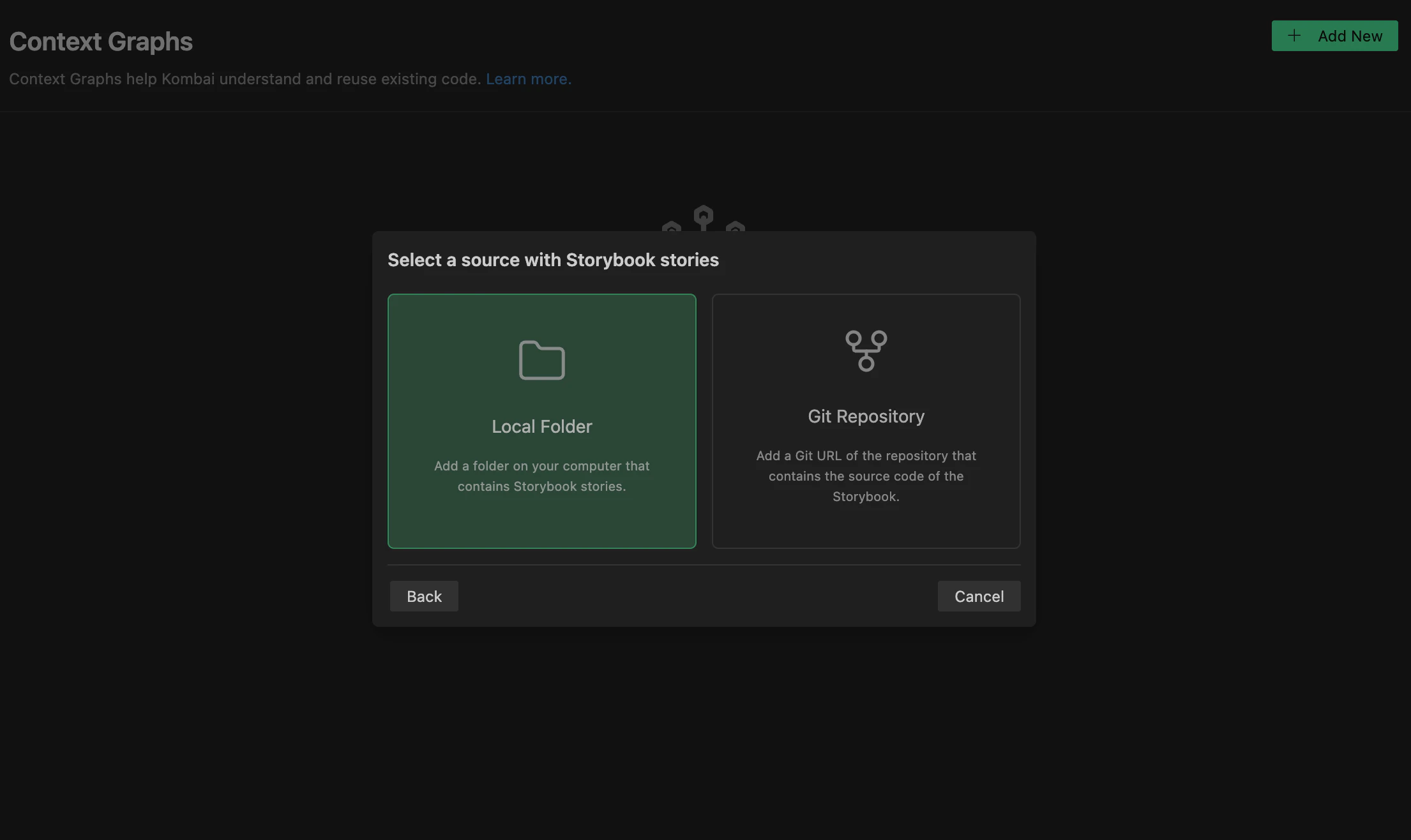
- Click the icon in the top bar to open the Settings page.
- Select the Context Graphs tab from the left menu.
- Click the Add your first context graph / + Add New button.
- Click Storybook -> Local Folder in the modal.
- Browse and select a local folder from your system to index and continue.
- Click Build Context Graph.
From Git Repository
From Git Repository
To build a Context Graph using Storybook files from a Git repository, index the URL of the git repository that contains the stories. In this case, the git credentials present in your current workspace must have cloning permissions of the git repository.Here’s how to index stories stories from a GitHub repo: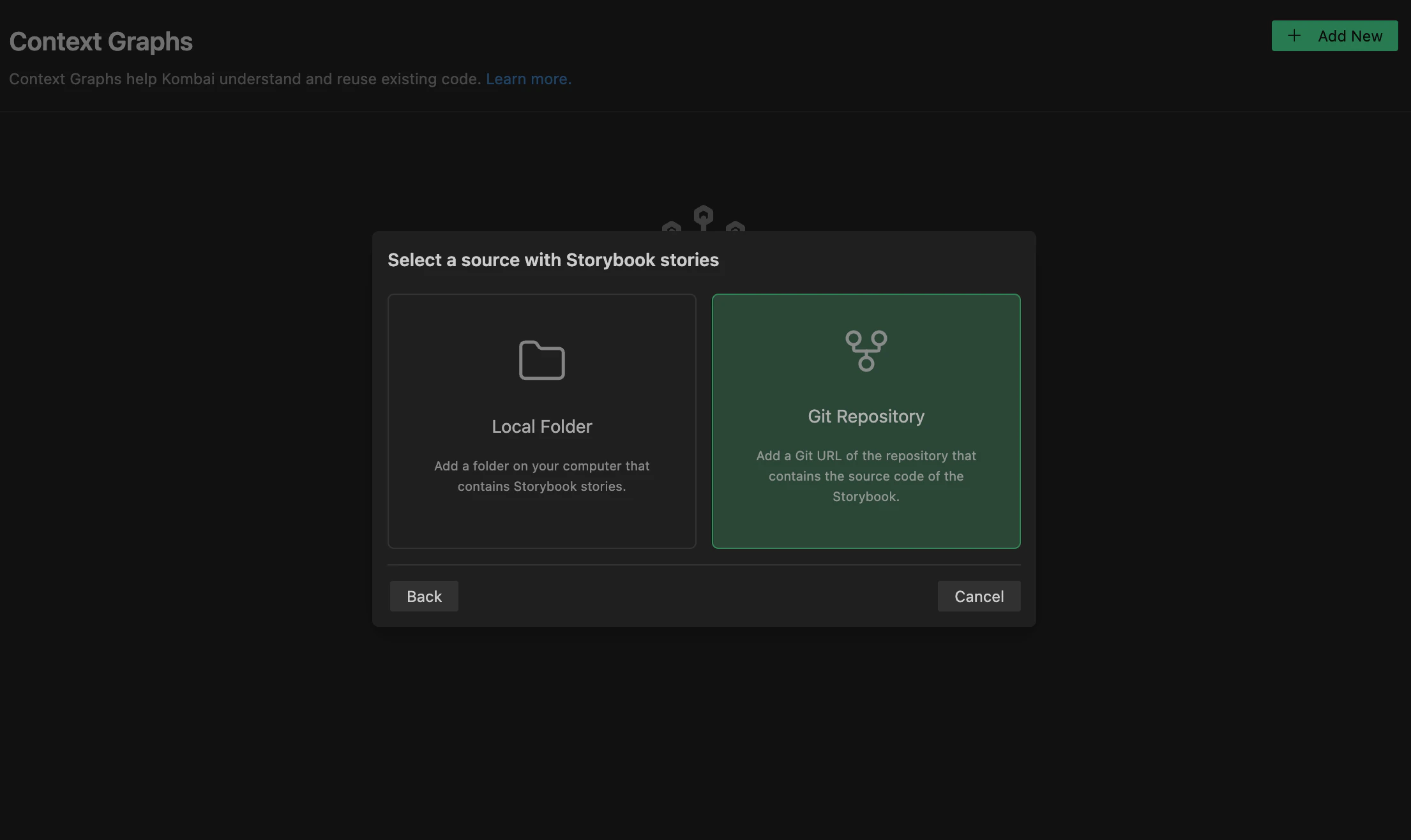
- Click the icon in the top bar to open the Settings page.
- Select the Context Graphs tab from the left menu.
- Click the Add your first context graph / + Add New button.
- Click Storybook -> Git Repository in the modal.
- Add your Git repository URL and the Branch and continue.
- Click Build Context Graph.
Index Storybook feature is currently available to our users on Team plan.
Use ContextRules to provide custom instructions for the indexing process
During the indexing process to build Context Graphs, Kombai analyzes a given source to identify relevant reusables based on established coding patterns (e.g.index.ts or index.js to identify exported components).
To provide additional guidance on how Kombai should identify reusable code items from your repo, you can specify relevant instructions in a ContextRules.md (filename not case sensitive) file in the ./.kombai/rules/ folder in your workspace.
This is particularly useful when Kombai indexes a repo but misses out on some code elements you consider to be reusable. You can check the list of reusable items returned by Kombai after indexing to spot such gaps, add appropriate instructions in the ContextRules.md file and re-index the source.
Multiple Context Graphs
You can index multiple sources in Kombai, to create a separate Component Graph for each source (e.g. a local folder and a private npm package). For a given task, the agent has access to all the Context Graphs available in the current project.Managing Context Graphs
Re-indexing Context Graphs
To manually update a Context graph, select the Rebuild option for the related card in Context Graphs page. When this option is selected, Kombai will rerun the indexing process to create a Context Graph from the latest version of the source code. If building a Context Graph was paused, the actions menu () on its card also shows Restart, which continues the build.Removing context graphs
To remove a Context Graph, click the actions menu () on the related card in the Context Graphs page and select Remove. Once removed, the agent won’t consider the said Context Graph for future tasks.Using stack.json to sync Context Graphs
If the Sync with stack.json toggle on the Tech Stack page is turned on, Kombai will automatically save the type, path, and name of the indexed Context Graphs to this file. Once you push this file to your remote Git repository, Kombai will automatically detect the Context Graphs from stack.json for all team members working on this repository.
Using Context Graphs
For any given task, Kombai’s coding agent can automatically access all indexed Context Graphs. You can also attach specific items from the Context Graphs by using theIndexed Context Items option in the @ menu of the chat input.
Context Graphs are used by Kombai in conjunction with other available contexts and instructions, such as prompts, rules, commands, skills and local files found via agentic search. You can provide additional instructions on how the agent should use the indexed context via prompts and rules.
How it works
Kombai follows a two step process to build Context Graphs, all executed via dedicated subagents.Phase 1: Discovering reusable code items
In current workspace
When a user inputs a folder in the current workspace, Kombai discovers all the code items that are likely to be reused. To understand what might be reusable, it relies on common naming conventions and organizational structures across different frameworks and languages as well as contextual inference on the project’s conventions. Below are the major types of reusable items it looks for:- UI Components (from extensions like
.tsx,.jsx,.vue,.svelte,.cljsetc.) - Hooks (for React), Composables (for Vue) and Modules (for Angular)
- State Management: e.g. Redux slices (
*.slice.ts), Zustand stores, Jotai atoms (*.jotai.ts), and Kea logic files (*Logic.ts) etc. - Utility and Helper Functions
- Design Tokens and Styling
- Icons and Assets
- Type Definitions
- Services and API Clients
- Other Specialized Patterns: e.g. GraphQL operations, internationalization (i18n) locale files, form systems, chart components, and animation data (Lottie JSON)
In NPM packages
When a user inputs a NPM package, Kombai analyzes all exports in a two substeps, and tries to figure out all the code items that are reusable. First, it discovers all the entry points by analyzing the configuration layer of a package to determine how it exposes its functionality to consumers. Below are some of the analyses it performs in this step:- Manifest Analysis: reads
package.jsonto findmain,module,exports,types, andstylefields. - Subpath Mapping: It maps export subpaths (e.g.,
./components,./hooks) to their corresponding source files. - Build Config Correlation: If entry points point to distribution folders (e.g.,
dist/,lib/), the agent correlates them with source directories (e.g.,src/) to find the original implementation. - TypeScript Resolution: Analyzes
tsconfig.jsonto resolve path aliases (e.g.,@/*->src/*) and identify root directories. - Monorepo Detection: Detects if the root is a monorepo (Lerna, Nx, Turborepo, Pnpm Workspaces) and can selectively index sub-packages.
- Re-export Traversal: If an entry point (like
index.ts) simply re-exports from other files, the agent follows those paths until it finds the actual definitions. - External vs. Internal: It distinguishes between items implemented within the package and those re-exported from third-party
node_modules. External re-exports are indexed with metadata pointing to the original package. - Cycle Detection: The agent maintains a traversal chain to prevent infinite loops in complex re-export structures.
- Framework specific support: It detects and processes framework specific code patterns. E.g. it processes
ng-package.jsonfiles for Angular libraries, ensuring correct entry point discovery for the Angular ecosystem
Phase 2: Creating semantic context for each reusable item
Once the reusable code items are identified, Kombai analyzes them using parallel subagents to develop an easily reusable context for each of them. The agent reads the source to extract semantic meaning, determining not just the name but their purpose, usage, behaviors and dependencies. Each item is also assigned a Type (component, hook, function, store, etc.) and a UI Category (layout, navigation, data display, etc.).Troubleshoot
I'm getting an error message while trying to build a Context Graph from a Git URL of a NPM package. How can I resolve this?
I'm getting an error message while trying to build a Context Graph from a Git URL of a NPM package. How can I resolve this?
Please make sure that following pre-requisites are fulfilled:
- The git url is of a valid repo - this should typically be of the format https://github.com/{org}/{repo}.git
- The branch name used is of a valid branch
- The git credentials present in your system has view permissions for the Git URL and branch you are trying touse
- Once these pre-requisites are confirmed, please retry running the indexing process.
support@kombai.com with a screenshot and details of the error you are facing.I'm getting a message that Kombai couldn't find any reusable items from my code source, after the indexing process for building a Context Graph is complete.
I'm getting a message that Kombai couldn't find any reusable items from my code source, after the indexing process for building a Context Graph is complete.
This message means Kombai likely needs additional guidance to understand the patterns of the reusable code items in your source. Please see this section for more details.If the issue persists, please reach out to support@kombai.com with a screenshot, details of the source you are trying to index and patterns of the reusable code items (e.g. components, hooks or types) in that repo.